Work in
SQLDetective (SD) may be automated not only by Macros Feature that has problems:
- actions are saved by cursor position and after changing the window position the macro execution will be incorrect;
- actions may be saved by hot-key but Icon Dictionary allows to change the hot-keys all over application, so the macro execution will be incorrect.
Workspace in SD has many useful settings that can automate your work. Unfortunately, there is no topics in Online Help for Preferences, but not all of them are intuitively named.
Here is a list of options that automate the SD tools using. They are grouped by SD users: all types, DB admin, data user, PL/SQL and DB developer.
ALL TYPES of SD user
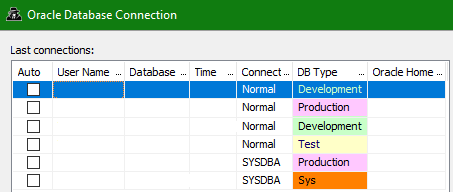
1. Any user may start SD by command line with connection to DB (for example, "C:\Program Files\SQLDetective\sd.exe CONNECT=scott/tiger@ora101.world") but as the values of CMD line are formatted to lowercase on executing then the auto-connect will fail for initcaps names of DB, login or password. Also, it's not good to store the un-ciphered username and password in bat-file for SD auto-start.
2. "Preferences / General / File Handling"
• "Associate with SQLDetective" (file extensions)
For setting and using these options you should start SD as Windows OS Admin. Otherwise, each SD start will disturb you by many unnecessary warning (error) messages about each selected file extension. Workaround: set the admin run to "c:\Program Files\SQLDetective 4.7\SD.exe" file in Windows OS. Help of these options using is the fast start of SD with auto-opening Stored Program Editor for procedures, functions, packages and object types and SQL Editor opening for all other objects including triggers, jobs, other stored objects or data. Note: store the object DDL in text files with type extension (unfortunately, only SQL Editor opens for them instead of referenced Object Wizard) or other scripts (pl/sql, dml, ddl) in sql-files.
3. "Preferences / General / Workspace"
• "Remember open object"
• "Remember open windows" = "Auto" or "Save / [WindowName] / AutoOpen + Size + Position + State"
These workspace options allow to auto-open any window on application session start and on new DB connection. Note: windows that depended on DB session (object wizards) will open only for linked connect, windows with ability to change the DB session or not linked with DB session (SQL Editor, Stored Program Editor, SmartDataset, all DBA tools, Output Window and others) will open on each DB connect. The most useful settings for fast work are the following: "Remember open objects"=ON, "Prompt on open objects"=OFF, "Confirm save and restore"=OFF, "Remember open windows"=AUTO, "Save"=AutoOpen(All OFF)+Size(All ON)+Position(All ON)+State(All ON).
4. "Preferences / Code Editors / SQL Editor / Editor and Tab Handling"
• "Open file in a new page"
• "Remember SQL statements"
• "Editor and Data Tab Synchronization" = sync activation, opening, renaming, closing
Several options in Preferences and the "Smart Output" option in SQL Editor allow to use the editor and output tabs more logically. Combine the options as you prefer.
5. "Preferences / General / Session"
• "Auto commit after each statement" (dataset, sql editor, object wizard,..) Note: there is a standalone option for dropping a job - "Preferences / Object Operations Handling / Jobs / Enable the commit check box in job dropping prompt window"
• "On disconnect" = "Commit"/"Rollback"/"Prompt"
• "Keep connection alive", "Ping the database every [X] seconds"
In order to forget the "F10" hot-key (COMMIT command execution) you may set the session options. Also they help to keep the remote connection alive always.
6. Any automated work must be logged. It may be done by "View / Output Window" opened from main menu. Any application actions (open/close window, hot-key pressing) are logged but the result should be saved manually. Some application errors are stored in the "%AppData%\Roaming\SQLDetective\SD.log" file.
7. Icon Dictionary allows to set toolbars and hot-keys for quick opening the linked tools. After that you may create and use macros more correctly.
DATA user
1. "Preferences / General / Object Navigator"
• "Remember open scene"
• "Quick navigation element count" = 10 or more
About Scene feature you may read in the "Object Navigator – SceneSelector" and "Object Navigator – Overview" topics of Online Help. Scenes allow to auto-open all necessity tabs in Object Navigator. The number of last opened folders in Object Navigator helps to open or locate objects faster.
2. "Preferences / Dataset Editors"
• "Commit on post"
• "Confirm view data that led to the error"
• "Clicking on the column title sorts data on the" = "Local"/"Server"
• "Autofit columns to" = "Data"/"Title"/"Data and title"
• "Print dataset query and session in report title" instead of Data Exporting
3. "Preferences / Code Editors / SQL Editor / Data Output"
• "Open a new dataset for each query executed in a bundle"
• "Keep column settings"
4. "Preferences / Dataset Editors / Smart Dataset"
• "Open separate window for each object"
5. "Preferences / Dataset Editors / List of Values"
• "Auto locate referenced data"
On working with datasets in SmartDataset or Data Output tab in SQL Editor, or Dataset page in Table, View and Mat.View wizards, or data grids in Object Navigator the listed options automatically show, edit and print data in personal mode.
6. "Preferences / Query Builder"
• "Auto link enabled"
• "Autosave property enabled"
• "Format SQL"
7. "Preferences / General / Version Control System" = "Built-in"
• "Open last used project at start up"
8. "Preferences / Repository"
• "Activate repository on startup"
Query Builder (main menu "Tools / Query Builder") generates a DML statement of any complexity level and join, it allows to name and order columns in user's mode. In a couple with Dataset Manager and Version Control System you may work with data in SmartDataset as in own application in single-record or grid mode. Do the following to create such helpful windows:
a) generate a select statement with joined tables or views by Query Builder;
b) set columns order and local names in Query Builder;
c) export the generated selection into SmartDataset;
d) add filter and sort conditions by Query Builder Editor, set columns width and visibility in SmartDataset and its Dataset Manager ("Filters" and "Columns" tabs);
e) create and open a Built-In Project of SD VCS (main menu "Repository / Install" + "Project / Create New Project" + "Project / Open Project");
f) save the SmartDataset with user's selection into VCS Project (popup menu "Dataset / Save to Project" of SmartDataset).
Next SD start with DB connect (or DB reconnect) will auto-open the SmartDataset with your select statement in the same mode with all settings when SD was closed.
PL/SQL, DB DEVELOPER
1. "Preferences / Code Editors / General"
• Save changes to file when closing window" = "Auto"/"Prompt"
• "Ctrl+Click on Synonyms Navigates to.." = "Synonym"/"Object"
2. "Preferences / Code Editors / Color"
• "Color schemas" = "SD"/"TOAD"/"SQL Navigator"/"PL/SQL Developer"
• Selected fonts are applied only on typing the text. Note: fonts may be changed after formatting by "Code Formatter" feature (main menu "Edit / Format / formatter Options")
3. "Preferences / Code Editors / Stored Program Editor"
• "Compile an invalid stored program after opening"
• "Open Body(Spec) when Spec(Body) opens"
• "Save changes to DB when closing window" = "Auto"/"Prompt"
• "Combine Spec and Body to a single file when saving" = "Auto"/"Prompt"
4. "Preferences / Code Editors / Stored Program Editor / Code Explorer"
• "Enabled"
• "Autonavigate"
5. "Preferences / Code Editors / SQL Editor"
• "Allow only one SQL Editor window"
• "Save sql statement before execute"
• "Skip to the next statement after execution"
• "Create run command for a script file" = "Prompt"/"Always"/"None"
6. "Preferences / Code Editors / SQL Editor / SQL Output"
• A list of options to exclude some PL/SQL commands from executing scripts: SET ECHO OFF, CLEAR SCREEN and so on. Unfortunately, not all option names are intuitive and Online Help does not have any description, so ask CSS TechSupport to explain them more detailed.
7. "Preferences / Code Editors / SQL Editor / SQL Execution History"
• "Remember SQL History List"
• "Ignore non-SQL statements" option works separately from " Preferences / Code Editors / SQL Editor / Save valid sql statements only"
• "Double click on SQL" = "copies/executes/replaces/opens for viewing"
8. "Preferences / Code Editors / SQL Editor / SQL Execution Wrapper"
• "Enable SQL execution wrapper"
• "Before SQL"
• "After SQL"
9. "Preferences / Code Editors / Code Insight"
• "Enabled", "Include DB objects, Code Assistant and Code Explorer data"
• "Show storage arguments" works in Debugger and non-debugger modes
• timer to show or delay the list of Code Insight
10. "Preferences / PL/SQL Debugger"
• "Save breakpoints"
• "Save watches"
11. "Preferences / General / Extract DDL"
• "Text case" = "Unchanged"/"Uppercase"/"Lowercase"/"Init Caps". Note: text font is applied automatically on opening an object DDL in text editor or generating SQL statement by drag&drop from Object Navigator to code editor.
12. "Preferences / Object Wizards" Note: only new GUI of windows (view, collection, trigger, index, sequence, cluster, mat.view, mat.view log, refresh group, index type, operator, queue, dimension, outline, job, library, sched.job, sched.program, sched.chain, sched.schedule, sched.destination, sched.group, sched.window, sched.job class, sched.credential, file watcher, edition, rule, rule set, rule evaluation context, restore point, flashback archive)
• "Break object creation/modification on error"
• "Log the process of object creation/modification" (in Output Window)
• "Automatically show SQL for changes on object change"
13. "Preferences / PL/SQL Profiler"
• "Open Profiler viewer after stopping Profiler"
Set the listed options and your work as developer will be fast and easy because of auto-linked SD tools. Set the indexes to Oracle Documentation and linked topic will open automatically from ora-error message or by popup menu of code editor for any Oracle key-word.
DB ADMIN
1. Use the templates in tools (find object, tkprof shell, export data wizard, import data wizard, compare dbs/schemas/objects, schema extractor, schema compiler, schema analyzer)
2. "Preferences / Session Navigator"
• "Apply last open settings on open"
• "Format SQL"
3. "Preferences / Storage Manager"
• "Apply last open settings on open"
4. "Preferences / Database Examiner"
• "Restore last active page"
• "Autosave datagrid settings"
• "Format SQL"
5. "Preferences / Database Monitor"
• "Restore last active page
• "Alarms", "Email", "Notify when returned to the allowed range"
6. "Preferences / Top Session Locator"
• "Restore last active criteria
• "Apply last open settings on open"
• "Format SQL"
Auto refresh in opened Session Navigator, Database Examiner, Database Monitor, Top Session Locator may be used instead of the "Keep connection alive" option in Preferences. It's a pity that now not all DBA tools send alarms to e-mail like it works in DB Monitor, SmartDataset doesn't have an option to auto refresh data for using it as personal application. But if you set the listed options then your work as DB Admin in SD becomes automated partly.
Unfortunately, no one of the support team in ConquestSS doesn't know all SD abilities and they can't present features properly. So, don't hesitate to type here your comments and questions about settings for useful and fast work in SD.